Getting started
Install joinXS Recorder, sign in, and make your first capture from a discovered or manually configured source.
Requirements
- Windows 11 or newer, or macOS 15 or newer
- An active joinXS license, or demo mode for evaluation
- Access to a live sender and its RTP endpoints, or an NMOS environment for source discovery
- A network interface that can receive the stream, including multicast traffic for multicast sources
- A writable destination folder with enough free space for the recording
Linux is currently not supported, but is planned depending on interest.
Installing and signing in
joinXS Recorder ships as a self-contained, platform-native installer: .dmg on macOS and .exe on Windows.
- Download the installer for your platform.
- Run the installer.
- Launch joinXS Recorder.
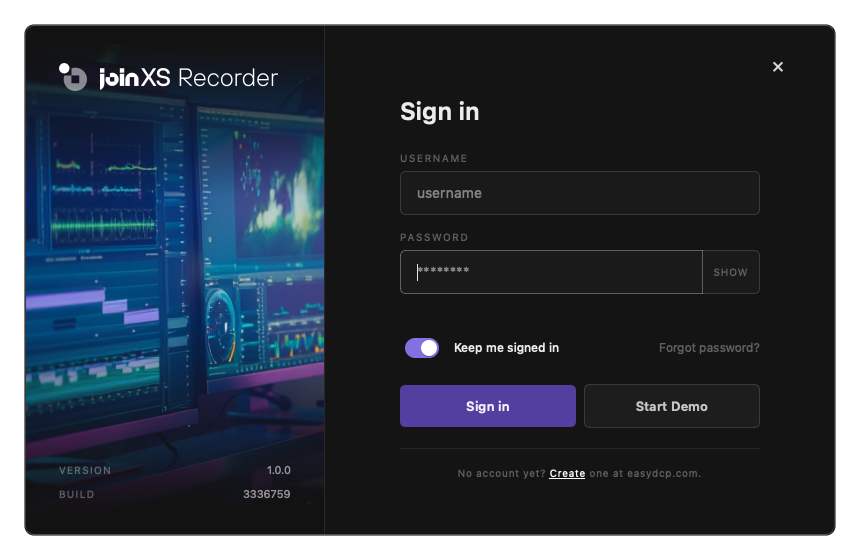
- Enter your easyDCP account username and password, then select Sign in. Alternatively, select Start Demo to evaluate the app.
Select Keep me signed in to enable automatic sign-in on subsequent launches. Use Show or Hide to change the visibility of a password you enter. A saved password cannot be revealed; clear it and enter it again if needed.
The sign-in dialog also provides Forgot password and Create account links, which open in your browser. If sign-in fails, read the message in the dialog before trying again.
For activation options and evaluation limits, see Licensing.
Recording your first source
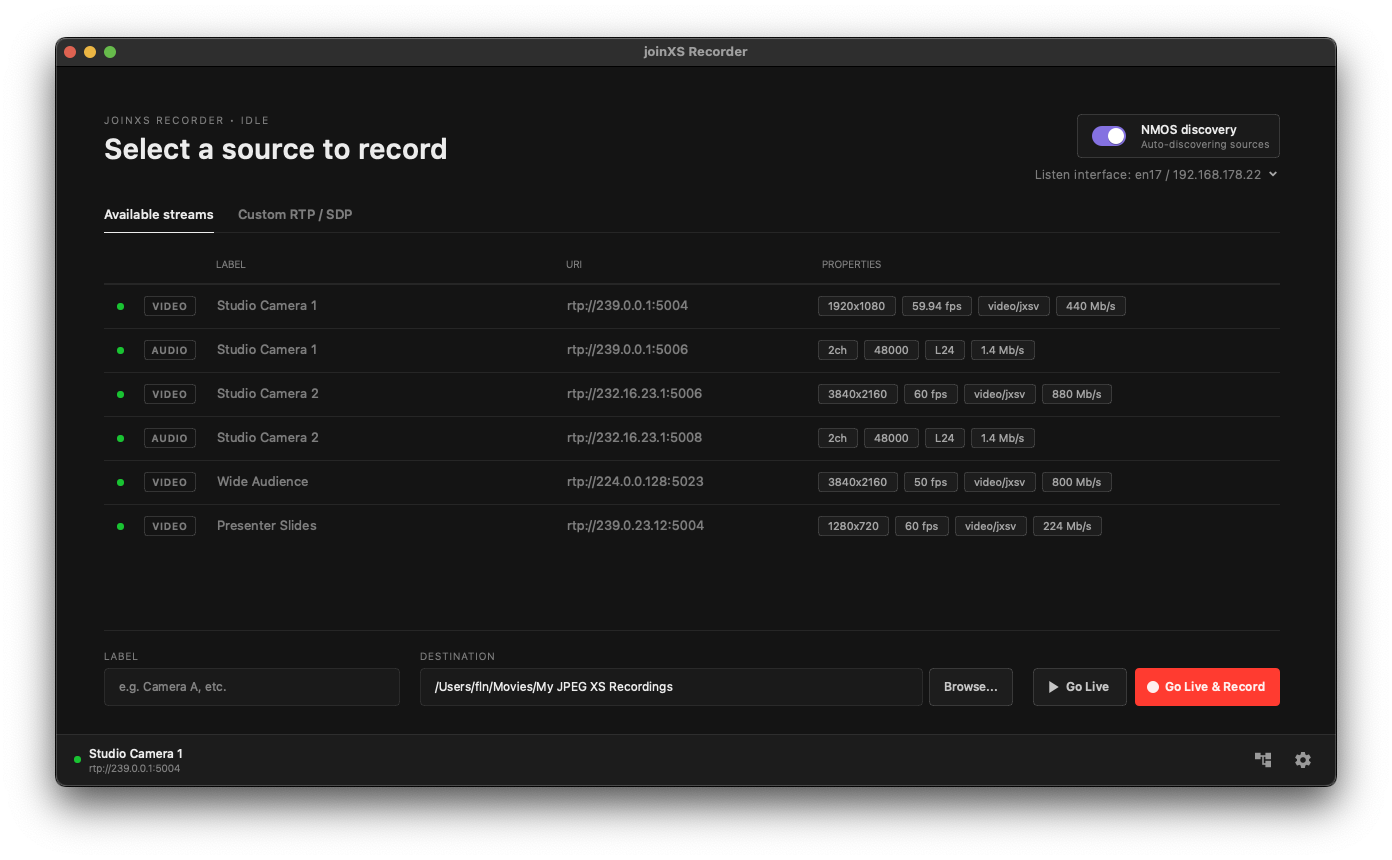
- Choose the Listen interface connected to your media network.
- Choose a source using Available streams or Custom RTP / SDP.
- Optionally, enter a Label to identify the recording.
- Set Destination, or select Browse to choose a folder.
- Select Start recording.
- Check the preview, recording time display, and Stream info. Read any warning or error banners.
- Select the square Stop recording button when finished.
- Locate the MXF file in your destination folder and check it in your editing or playback application before relying on the capture.
The default destination is your saved folder or My JPEG XS Recordings inside your Movies folder. Date subfolders and filename templates are configured in Destination settings.
Confirm that media is arriving
Starting a recording or seeing an MXF file does not by itself confirm that media packets are arriving. Source properties and bitrate values can come from configured metadata. Verify the recorded content, not just the presence of a file.
For capture controls and file information, continue to Recording.